Try Tidyflow
Get your firm organized.
Watch a 4-minute demo, or start a free trial. No credit card required.
Accounting firms are prime targets for cyberattacks. You hold sensitive financial data for dozens or hundreds of clients — tax file numbers, bank account details, financial statements, payroll records. A single breach can expose all of it.
Most small accounting firms don’t have a dedicated IT team. That doesn’t mean cybersecurity is optional — it means you need to focus on the protections that matter most. This guide covers what to do, in priority order.
The Threats That Target Accounting Firms
Not all cyber threats are equal. These are the ones accounting firms actually encounter:
Phishing Emails
By far the most common attack. An email that looks like it’s from the ATO, a client, or a software vendor tricks someone into clicking a link or entering their password. The attacker then has access to your email, your files, or your clients’ data.
Why accounting firms are vulnerable: You receive emails from dozens of clients, the ATO, and financial institutions daily. A fake email blends in easily.
Ransomware
Malicious software encrypts your files and demands payment to unlock them. If your client files, working papers, and email are all encrypted, your firm grinds to a halt.
Why accounting firms are vulnerable: Firms that don’t have proper backups are desperate to recover their data and may pay the ransom.
Business Email Compromise (BEC)
An attacker gains access to your email account (usually via phishing) and impersonates you. They might email your client with fake bank details for a payment, or request a funds transfer from your firm’s own accounts.
Why accounting firms are vulnerable: Clients trust emails from their accountant. If your email says “please transfer funds to this account,” many clients won’t question it.
Credential Theft
Stolen passwords — often from data breaches at other services where your team reused passwords — are used to access your accounting software, email, or client portal.
Why accounting firms are vulnerable: Password reuse is rampant. If someone uses the same password for their email and their accounting software login, one breach compromises both.
The Essentials (Do These First)
These five measures stop the vast majority of attacks. Implement them before anything else.
1. Enable Multi-Factor Authentication (MFA) Everywhere
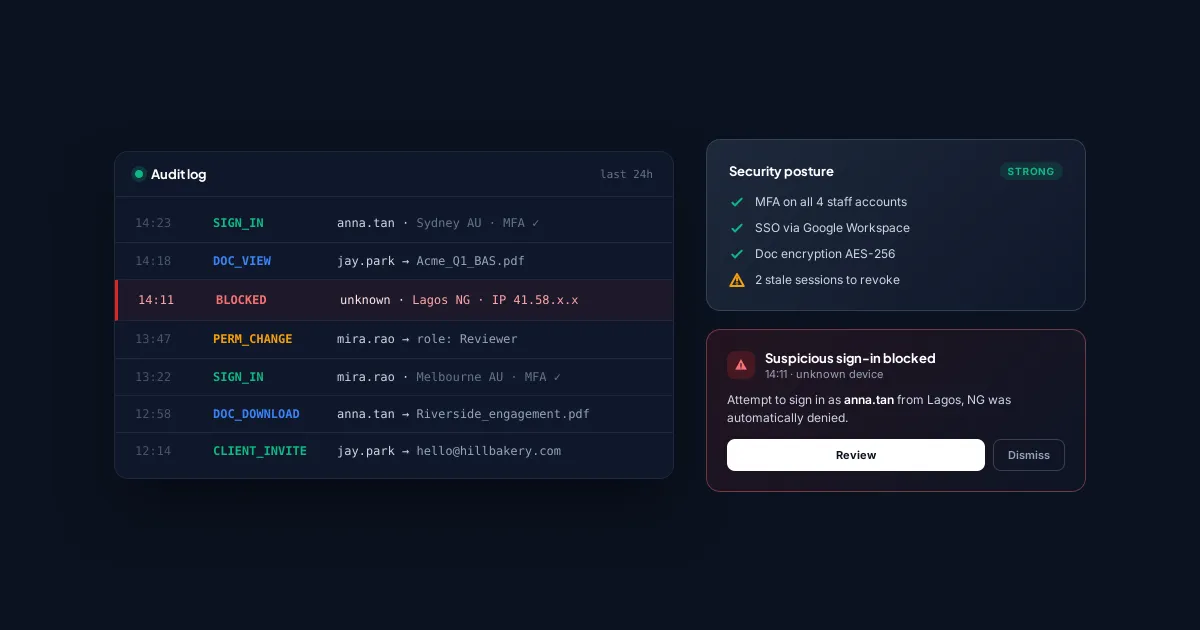
MFA requires a second verification step (usually a code from your phone) when logging in. It stops stolen passwords from being useful on their own.
Enable MFA on:
- Email (Gmail, Outlook/Microsoft 365)
- Accounting software (QuickBooks Online, Xero)
- Practice management software
- Client portal
- Cloud storage (Google Drive, Dropbox, OneDrive)
- Any system that holds client data
MFA type matters: SMS codes are better than nothing, but authenticator apps (Google Authenticator, Microsoft Authenticator, Authy) are more secure. Hardware keys (YubiKey) are the strongest option.
If your firm does only one thing from this entire guide, enable MFA on email and accounting software. This alone prevents the majority of account compromises.
2. Use Unique Passwords With a Password Manager
Every login should have a unique, complex password. No one can remember 50+ unique passwords, so use a password manager:
- 1Password or Bitwarden are popular choices for small firms
- They generate and store unique passwords for every site
- The team shares access through the password manager instead of writing passwords on sticky notes or in spreadsheets
Firm-wide rules:
- No password reuse across services
- Minimum 16 characters for generated passwords
- Shared accounts (if unavoidable) are managed through the password manager, not emailed around
3. Keep Software Updated
Most successful attacks exploit known vulnerabilities that have already been patched. The patch only protects you if you install it.
- Turn on automatic updates for operating systems (Windows, macOS)
- Update browsers (Chrome, Edge, Firefox) — these are auto-updated by default, don’t disable it
- Update accounting and practice management software promptly when updates are available
- Don’t ignore update prompts — that notification you’ve been dismissing for 3 weeks might be patching a critical vulnerability
4. Back Up Your Data (and Test the Backups)
Backups are your insurance against ransomware. If your files are encrypted, you can restore from backup instead of paying a ransom.
The 3-2-1 rule:
- 3 copies of your data
- 2 different storage types (e.g., cloud + external hard drive)
- 1 copy offsite (cloud backup counts)
Critical: Test your backups regularly. A backup you can’t restore from is worthless. Once a quarter, pick a random file and verify you can restore it.
If you use cloud-based practice management software like Tidyflow, your job data, client information, and documents are already backed up and encrypted in the cloud. But you should still backup your local files, email, and accounting software data independently.
5. Train Your Team
Technology can’t protect against a human who clicks a phishing link. Regular training turns your team from a vulnerability into a defence.
What to cover:
- How to spot phishing emails: Check the sender’s actual email address (not just the display name), hover over links before clicking, be suspicious of urgency (“your account will be locked in 24 hours!”)
- What to do if they click something suspicious: Immediately change the password, notify the firm, don’t try to hide it
- Social engineering awareness: Be cautious of unexpected phone calls asking for client information, even if the caller seems legitimate
- Physical security basics: Lock your laptop when you step away, don’t leave client files visible on your screen in public
Frequency: A 30-minute session every quarter is more effective than an annual 2-hour training. Keep it practical with real examples, not theoretical.
Level 2: Once the Essentials Are in Place
After implementing the five essentials, these measures add additional protection:
Email Security Settings
- Enable email filtering to catch phishing and spam before it reaches inboxes
- Set up DMARC, DKIM, and SPF records for your domain to prevent attackers from spoofing your firm’s email address
- Disable automatic email forwarding rules — attackers often set up silent forwarding to exfiltrate data
Device Security
- Encrypt all devices — enable FileVault (Mac) or BitLocker (Windows) on every laptop and desktop. If a device is stolen, the data is unreadable.
- Use mobile device management (MDM) if team members access work data on their phones — at minimum, require a screen lock and the ability to remote-wipe a lost device.
- Don’t use personal devices for client work unless they meet the same security standards as firm devices.
Access Controls
- Limit access to what people need. A junior bookkeeper doesn’t need access to every client’s tax file. Use role-based permissions.
- Remove access immediately when someone leaves the firm. Have a checklist: disable email, revoke software access, change shared passwords, recover devices.
- Review access quarterly. People accumulate access over time. Audit who has access to what and remove anything unnecessary.
Secure File Sharing
- Never send sensitive documents as email attachments. Use a client portal with encryption.
- Disable link sharing on cloud storage unless specifically needed. A Google Drive link set to “anyone with the link” is a data breach waiting to happen.
- Use secure messaging for sensitive communications if email isn’t sufficient.
Creating a Simple Incident Response Plan
When (not if) something goes wrong, having a plan prevents panic:
Step 1: Contain
- Disconnect the affected device from the network
- Change passwords for any potentially compromised accounts
- Disable the compromised user’s access if needed
Step 2: Assess
- What happened? (Phishing click, ransomware, unauthorized access?)
- What data might be affected?
- Which clients are potentially impacted?
Step 3: Notify
- Inform your team
- Notify affected clients (you may be legally required to do this)
- Contact your cyber insurance provider (if you have coverage)
- Report to relevant authorities (data protection regulators, police if appropriate)
Step 4: Recover
- Restore data from backups if needed
- Re-secure compromised accounts
- Document what happened and how it was resolved
Step 5: Improve
- What allowed the incident to happen?
- What would have prevented or caught it earlier?
- Update your security practices accordingly
Cybersecurity on a Budget
You don’t need enterprise security tools. Here’s a realistic budget for a small firm:
| Item | Cost | Impact |
|---|---|---|
| Password manager (Bitwarden) | Free–$4/user/month | Eliminates password reuse |
| MFA (authenticator app) | Free | Stops 99%+ of credential attacks |
| Cloud backup (Backblaze, etc.) | $7/computer/month | Ransomware recovery |
| Staff training (KnowBe4 or similar) | ~$25/user/year | Reduces phishing risk |
| Cyber insurance | Varies ($500–2,000/year) | Financial protection if breached |
Total for a 5-person firm: roughly $200–300/month. That’s the cost of losing a single client — and far less than the cost of a data breach (average cost for a small business: $120,000–200,000).
The Minimum Viable Cybersecurity Checklist
If you do nothing else, do these:
- MFA enabled on email and all software that holds client data
- Password manager in use, no password reuse
- Automatic updates enabled on all devices
- Data backed up (cloud + one other location), tested quarterly
- Team trained on phishing recognition (at least once)
- Incident response plan written down (even a one-page version)
- Offboarding checklist for departing staff (access revocation)
Security doesn’t require perfection. It requires consistent, basic protections applied everywhere. Most breaches exploit the basics — weak passwords, missing MFA, unpatched software, and untrained staff. Fix those first, and you’ve eliminated the vast majority of your risk.