Try Tidyflow
Get your firm organized.
Watch a 4-minute demo, or start a free trial. No credit card required.
Email is the default communication tool for every accounting firm. It’s also the biggest source of lost information, missed follow-ups, and wasted time. The average professional spends 28% of their workday on email — that’s over 2 hours per day reading, writing, and searching through messages.
For accounting firms, the problem is worse. Client emails contain tax documents, questions about deadlines, requests for advice, and approval of financial statements — all mixed together in one inbox. Miss a document attachment and a job stalls. Lose a client question and trust erodes.
This guide covers practical strategies for managing email in an accounting firm, without requiring you to overhaul your entire workflow.
Why Email Management Breaks Down in Accounting Firms
Before fixing the problem, understand why it happens:
Client communication is scattered. One client sends their bank statements to you, their tax documents to your colleague, and a question about their invoice to your admin. No single person has the full picture.
Email is both communication and task management. An email asking “can you check my BAS?” is really a task request, but it lives in your inbox alongside newsletters, internal messages, and spam. Important requests get buried.
No shared visibility. When a client emails you and you’re on holiday, nobody else knows. The client waits, gets frustrated, and follows up — sometimes to a different person, creating duplicate threads.
Follow-up falls through the cracks. You read an email, think “I’ll handle this later,” and it disappears under 30 new messages. By the time you remember, the deadline has passed.
Strategy 1: Separate Communication from Task Management
The single most impactful change you can make is stop using your inbox as a to-do list.
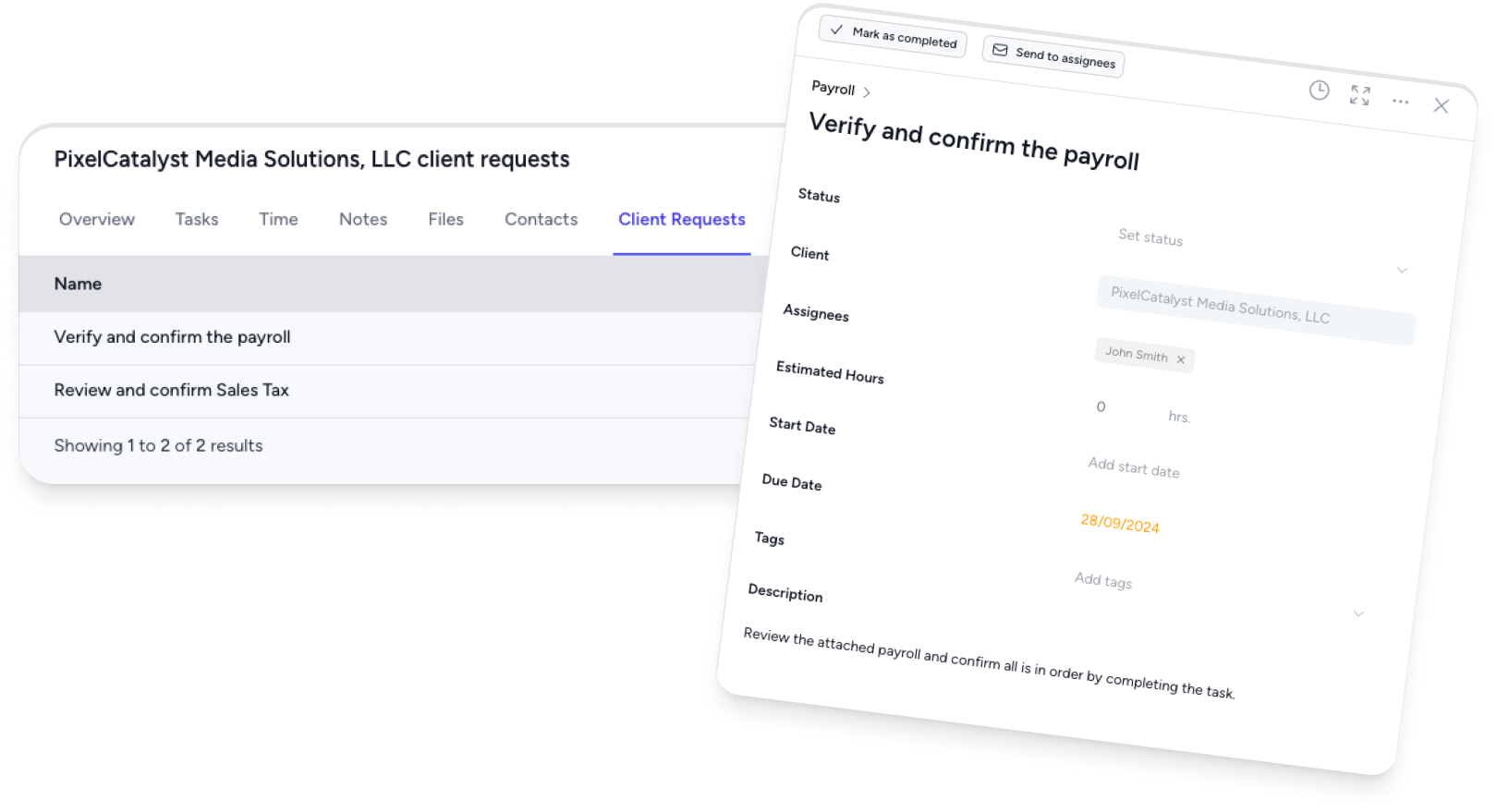
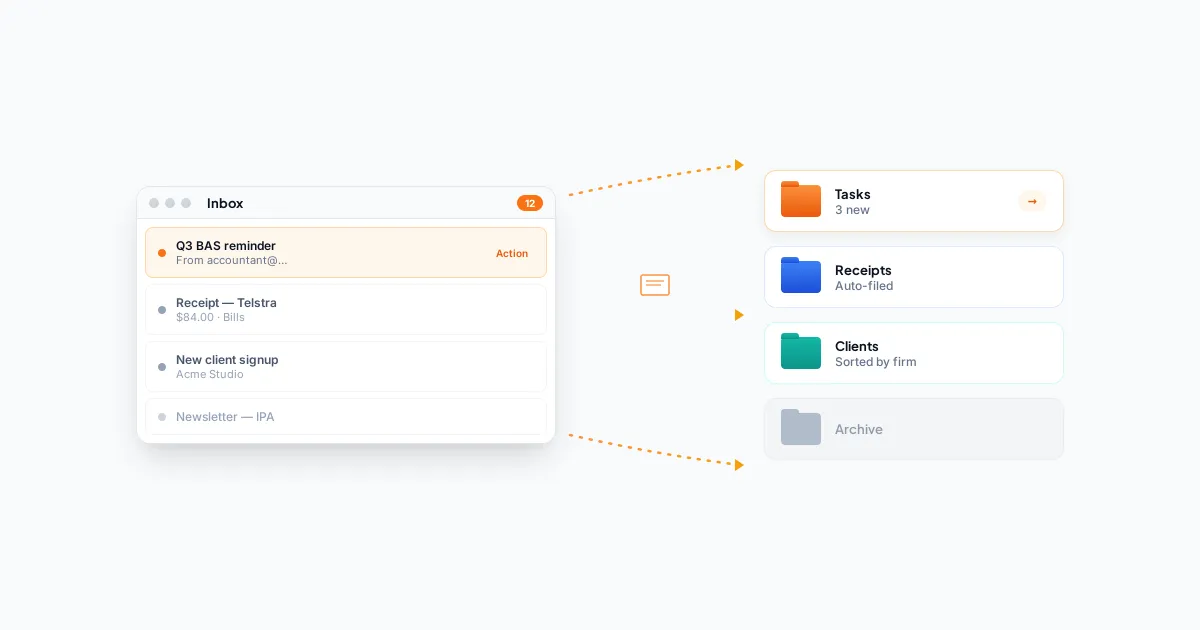
When a client email contains a task (send documents, review a return, answer a question), extract the task into your practice management software or task list. Then archive the email.
The process:
- Read the email
- If it requires action, create a task in your job management system (with the relevant client and deadline)
- If it contains a document, save it to the client’s folder
- Reply or acknowledge if needed
- Archive the email
This means your inbox only contains messages you haven’t processed yet. Once processed, they’re gone. The actual work lives in your task system where it can be tracked, assigned, and prioritized.
Strategy 2: Use a Shared Inbox for Client Communication
If multiple people handle client emails, a shared inbox prevents messages from falling through the cracks.
A shared inbox (like info@yourfirm.com or clients@yourfirm.com) means:
- Any team member can see and respond to client emails
- If someone is sick or on leave, others can pick up their messages
- Managers can see response times and identify bottlenecks
- Client communication is documented in one place, not scattered across personal inboxes
Rules for shared inboxes:
- Assign ownership. When someone picks up an email, they assign it to themselves so others know it’s being handled.
- Don’t leave emails unassigned. Unassigned emails in a shared inbox are worse than individual inboxes — everyone assumes someone else will handle it.
- Set response time targets. Aim for same-day acknowledgment, even if the full response takes longer.
Some practice management tools, including Tidyflow, include email integration that connects client emails directly to jobs. This means emails aren’t just organized — they’re linked to the specific work they relate to.
Strategy 3: Create Email Templates for Repetitive Messages
Accountants send many of the same emails over and over. Templates save time and ensure consistency:
Document Request Template
Subject: Documents needed for your [tax return / BAS / year-end accounts]
Hi [Client Name],
We’re ready to start on your [service]. To proceed, we need the following documents by [deadline]:
- [Document 1]
- [Document 2]
- [Document 3]
You can upload them through your client portal: [link]
If you have any questions about what’s needed, just reply to this email.
Thanks, [Your Name]
Job Completion Template
Subject: Your [BAS / tax return / accounts] is complete
Hi [Client Name],
Your [service] for [period] is now complete. Here’s a summary:
- [Key outcome 1 — e.g., “Your BAS shows a refund of $2,340”]
- [Key outcome 2 — e.g., “We’ve lodged this with the ATO on your behalf”]
- [Any action required from the client]
The full report is available in your portal: [link]
If you have any questions, don’t hesitate to reach out.
Best, [Your Name]
Engagement Letter Follow-up Template
Subject: Quick follow-up — engagement letter
Hi [Client Name],
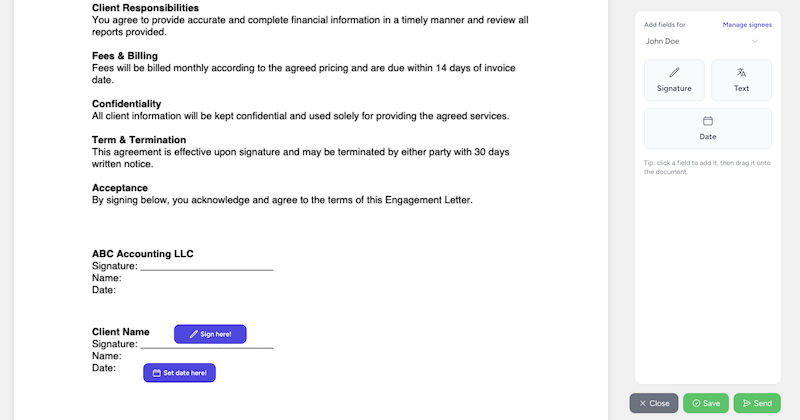
Just a quick reminder that we sent your engagement letter on [date]. We need this signed before we can start work on your [service].
You can review and sign it here: [link]
If you have any questions about the terms, happy to jump on a quick call.
Thanks, [Your Name]
Build a library of 10–15 templates covering your most common scenarios. Even if you customize each one, starting from a template saves 5–10 minutes per email.
Strategy 4: Process Email in Batches
Checking email constantly is one of the biggest productivity killers. Every time you switch from a task to your inbox and back, you lose focus. Research suggests it takes an average of 23 minutes to fully refocus after an interruption.
Instead, batch your email processing:
- Check email 3–4 times per day at set times (e.g., 9am, 12pm, 3pm, end of day)
- Process to zero each time — every email gets a reply, a task, or an archive
- Turn off notifications between processing windows
- Set an auto-responder for clients if needed: “We respond to emails within 4 business hours. For urgent matters, call [number].”
This doesn’t mean clients wait longer. It means you respond deliberately instead of reactively, and your actual work gets uninterrupted focus time.
Strategy 5: Use Folders and Labels That Match Your Workflow
If you keep emails in your inbox, organize them to match how you actually work:
Simple Folder Structure
- Action Required — emails you need to do something about
- Waiting on Response — emails you’ve sent and are waiting for a reply
- Reference — emails you might need later but don’t require action
- Archive — everything else
Don’t create a folder for every client. That creates dozens of folders and makes email organization a full-time job. Instead, use search to find specific client emails when needed — modern email search is fast enough.
Label by Priority
If your email client supports labels (Gmail, Outlook), use:
- Urgent — needs same-day response
- This Week — needs attention but not today
- Low Priority — informational, handle when time permits
Strategy 6: Reduce Email Volume
The best email management strategy is having fewer emails to manage.
Move client communication to a portal. Document requests, file sharing, and routine updates shouldn’t happen via email. Use a client portal instead — it’s more secure, more organized, and creates less inbox clutter.
Use Slack or Teams for internal communication. Internal questions (“where’s the Smith file?”, “did you finish the Jones BAS?”) don’t belong in email. They’re short, time-sensitive, and conversational — perfect for chat. Reserve email for external communication and formal internal messages.
Unsubscribe aggressively. If you haven’t read the last 3 emails from a newsletter or vendor, unsubscribe. Every unnecessary email is a distraction that costs attention.
Set expectations with clients. Some clients email you 5 times about the same question. A clear response with “I’ll have this done by Thursday” reduces follow-up emails dramatically.
Strategy 7: Handle the “Urgent” Client Email
Every firm has clients who email with “URGENT” in the subject line. Most of these aren’t actually urgent.
Create a triage system:
- Genuinely urgent (tax authority deadline today, payroll needs processing): Handle immediately
- Feels urgent to the client (wants to know their refund amount, has a question about an invoice): Acknowledge same-day, resolve within 48 hours
- Not urgent at all (wants to chat about restructuring their business, asks about next year’s tax changes): Schedule for your next available time
A quick acknowledgment — “Got your email, I’ll have an answer for you by [date]” — calms most clients and buys you time to respond properly without dropping everything.
The Email Management Checklist
Implement these in order of impact:
- Stop using your inbox as a to-do list — extract tasks into your job management system
- Create templates for your 10 most common emails
- Batch-process email 3–4 times per day instead of constantly
- Move document exchange to a client portal to reduce email volume
- Set up a shared inbox if multiple people handle client communication
- Triage “urgent” requests — acknowledge fast, resolve on schedule
Connecting Email to Your Workflow
The fundamental problem with email in accounting firms is that it exists outside your workflow. Client requests arrive in email, but the work happens in your practice management system. Documents arrive as email attachments, but they need to live in client folders.
Tidyflow bridges this gap with email integration that connects client communication to jobs. When a client emails you about a specific job, the email is visible alongside that job’s tasks, documents, and progress. Your team can see the full context without switching between email and your task system.
Combined with Tidyflow’s client portal for document requests and automated reminders, you can move the majority of client communication out of email entirely — leaving your inbox for the messages that actually need to be there.
Start a free trial to see how it fits your firm’s email workflow.