
You keep the books in QuickBooks Online. Run the firm in Tidyflow.
Connect Tidyflow to QuickBooks Online and stop typing clients and invoices into two systems. Import clients, service items, and tax codes, then push invoices from Tidyflow to QuickBooks Online in one click, on demand or on send.
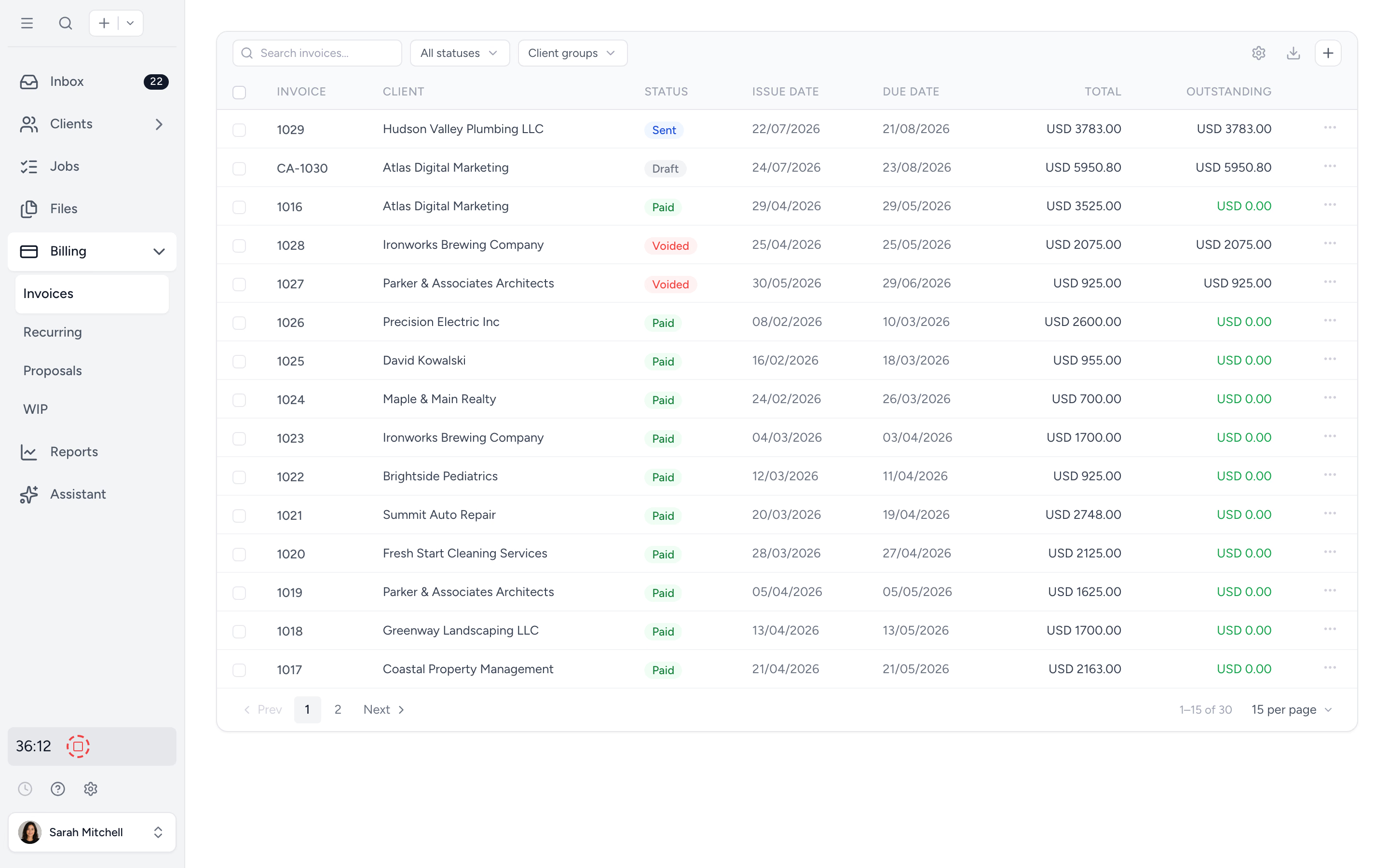
Import your client list
Pull clients (customers), service items, and tax codes from QuickBooks Online so your records match from day one. No re-keying.
Push invoices in one click
Send a Tidyflow invoice to QuickBooks Online on demand, or automatically on send. A default service item keeps unmapped lines posting cleanly.
One source of truth per client
Jobs, files, requests, e-signatures, time, and invoices live in Tidyflow. QuickBooks Online stays your general ledger. No double entry between them.
Connect QuickBooks Online in a couple of minutes.
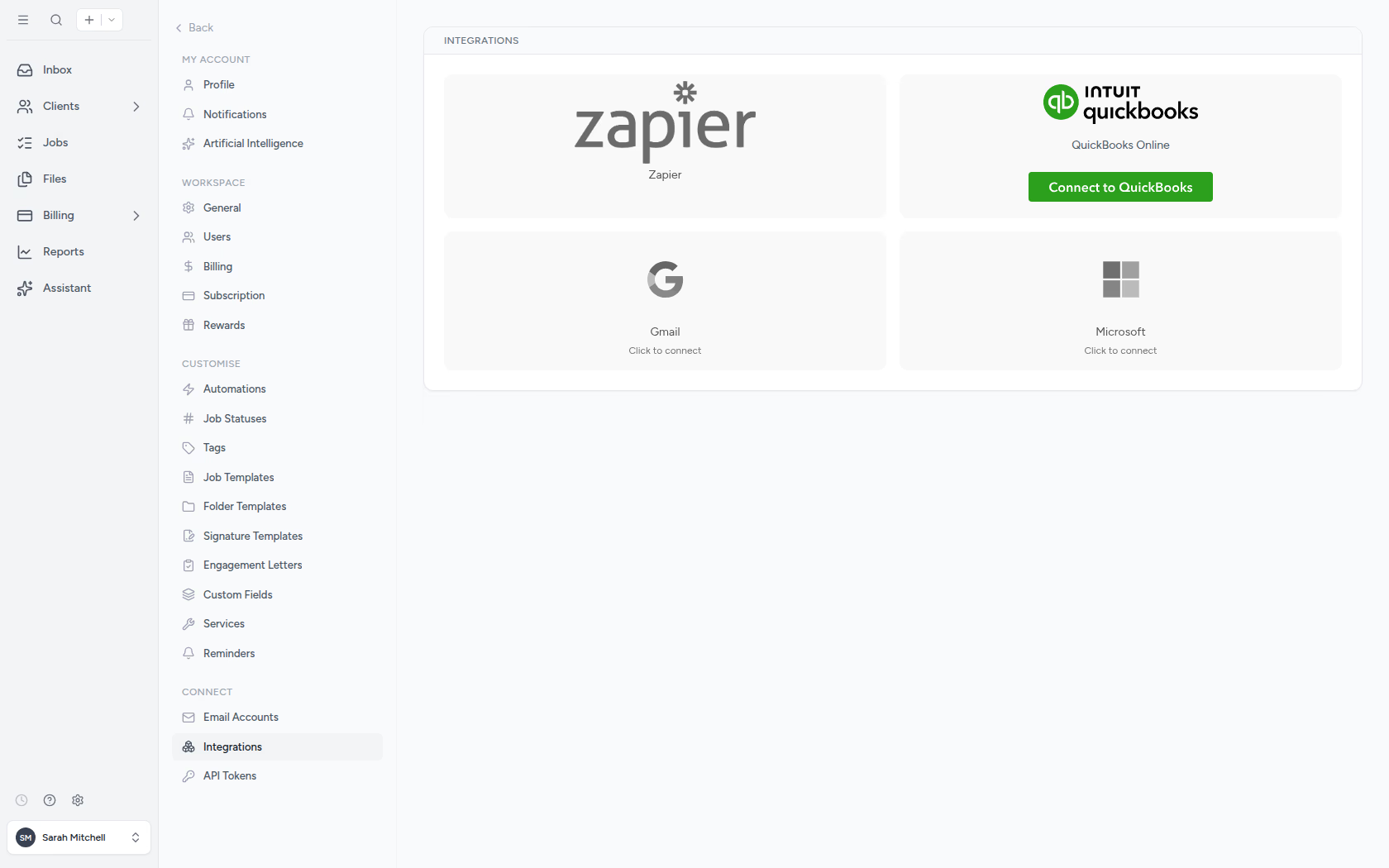
From Settings, open Integrations, select QuickBooks Online, and click Connect. Sign in to QuickBooks, pick the correct company, and confirm access. Tidyflow stores the connection for your whole workspace, so it keeps working after you sign out and until you disconnect.
- ✓ Connect from Settings → Integrations → QuickBooks Online
- ✓ Sign in to QuickBooks and choose the company to link
- ✓ One QuickBooks company per Tidyflow workspace
- ✓ Disconnect or switch companies any time from the same screen
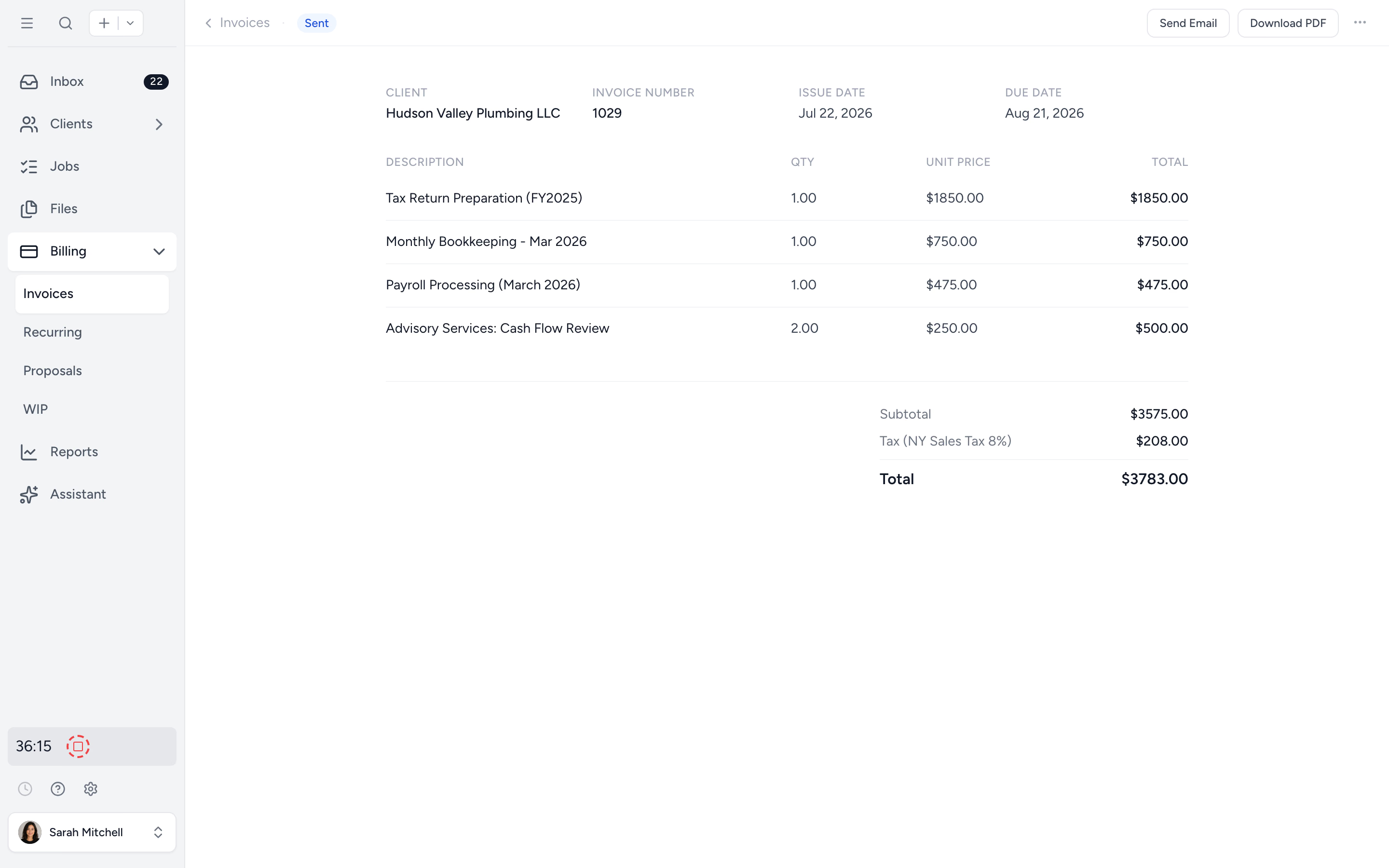
Push invoices to QuickBooks Online without leaving Tidyflow.
Raise an invoice in Tidyflow against the job and send it to QuickBooks Online in one click, or let it post automatically on send. Lines map to your QuickBooks service items; anything without a mapped service type falls back to the default service item you set, so nothing gets stuck.
- ✓ Push single invoices or send in bulk
- ✓ Automatic push on send, or on demand
- ✓ Default service item for unmapped lines
- ✓ Open the invoice in QuickBooks Online from Tidyflow
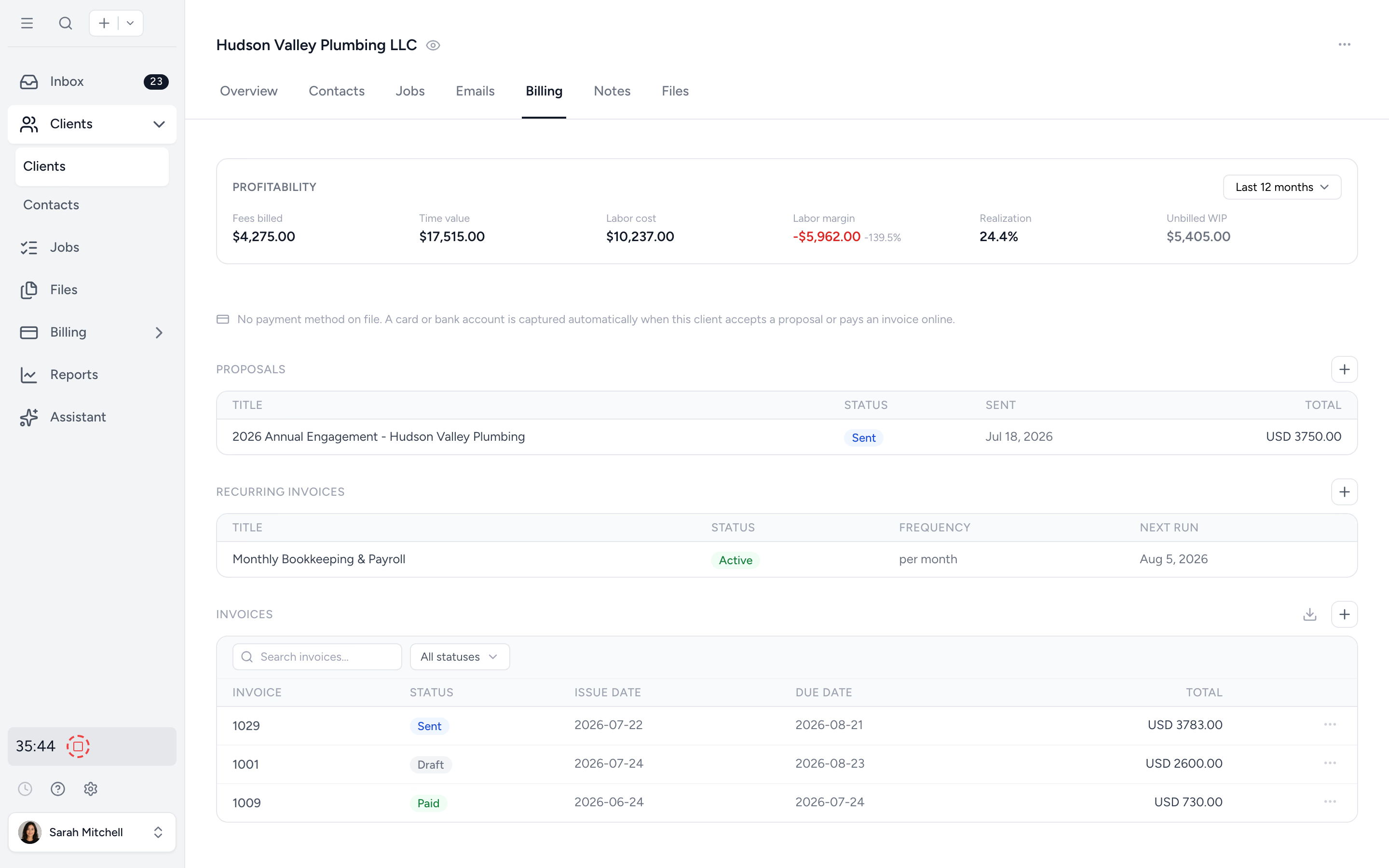
The practice management layer on top of your ledger.
QuickBooks Online runs your accounts. Tidyflow runs the work that produces them: recurring jobs, deadlines, client requests, e-signatures, time tracking, and billing, in one clean per-client view. Invoices can post to QuickBooks Online automatically when you send them, so nobody has to remember to copy them across.
- ✓ Recurring jobs for monthly bookkeeping, payroll, tax returns
- ✓ Client requests with reminders that follow up automatically
- ✓ Time tracking against jobs, then straight to an invoice
- ✓ A secure client portal for documents and signatures
QuickBooks Online and Tidyflow, kept in step.
Import from QuickBooks Online
- Clients (customers)
- Service items
- Tax codes
- Default service item mapping
Push to QuickBooks Online
- Invoices on demand
- Automatic push on send
- Bulk invoice push
- Open the invoice in QuickBooks Online
Run in Tidyflow
- Jobs, deadlines & recurring work
- Client requests & portal
- Electronic signatures
- Time tracking, invoicing & payments
Questions about the QuickBooks Online integration.
Tidyflow imports your clients (customers), service items, and tax codes from QuickBooks Online, and pushes invoices from Tidyflow to QuickBooks Online. That keeps client records, service items, and tax codes consistent without double entry.
In Tidyflow, go to Settings, click Integrations, select QuickBooks Online, and click Connect. Sign in to QuickBooks, choose the correct QuickBooks company, and confirm access. See the QuickBooks Online integration help article for the full walkthrough.
Yes. You can push invoices on demand or have Tidyflow send them to QuickBooks Online automatically on send. When an invoice line has no mapped service type, Tidyflow uses the Default Service Item you configure so the invoice still posts cleanly.
Open Settings, click Integrations, open QuickBooks Online, and click Disconnect. This revokes the connection from Tidyflow. You can then reconnect and choose a different QuickBooks company. Only one QuickBooks company can be connected per Tidyflow workspace.
Yes. The QuickBooks Online integration is included on all Tidyflow plans. You only need a paid Tidyflow account and a QuickBooks Online account.
See the QuickBooks Online integration help article for connecting, configuring the default service item, pushing invoices, and switching companies.
Connect Tidyflow to QuickBooks Online.
Start free for 14 days. No credit card. Connect QuickBooks Online in a few minutes and push your first invoice.
Intuit and QuickBooks are registered trademarks of Intuit Inc. Used with permission.