
Billing & Payments
Accept online payments
Connect Stripe to let clients pay invoices online by card or bank, pass the card fee on, and set up automatic charging of saved payment methods.
Tidyflow uses Stripe to collect online payments. Once connected, your emailed invoices include a secure payment page, contacts with billing access can pay from the client portal, and clients save a payment method when they accept a proposal. Payments are recorded in Tidyflow automatically, and payouts go straight to your bank account from Stripe.
Online payments are included on every Tidyflow plan. Connecting Stripe requires the account owner or a user with billing permission.
Turn on online payments
- Go to Settings and open Billing
- In the Online payments section, click Enable Online Payments
- Complete the Stripe onboarding form
You do not need an existing Stripe account. Tidyflow creates a Stripe account for your firm as part of setup, and Stripe’s onboarding form collects your business details, identity verification, and the bank account your payouts should go to. If you already use Stripe, sign in with your existing Stripe login during onboarding and the new account is added alongside your other accounts. Tidyflow cannot connect an account you already have. To bring customers and their saved cards across from another Stripe account so clients don’t need to enter them again, see Import clients and saved cards from Stripe. Subscriptions and payment history stay in the other account.
When you finish, you return to Tidyflow. The Stripe account row in the Online payments section shows Connected once your account is fully active. Click Open Stripe to manage the account in Stripe. If a status looks out of date, click the ⋯ menu next to it and choose Refresh status.
Verification and account status
Stripe verifies new accounts before enabling payments. The Online payments section in Settings under Billing shows where you stand:
- Pending Verification means Stripe is reviewing your information. This can take a few minutes to a couple of days. Use View on Stripe to check the account while you wait.
- Setup Incomplete means Stripe still needs information before you can accept payments. Review any outstanding items shown and click Complete Setup. This continues with the same Stripe account, including when you left onboarding before finishing. Do not disconnect and enable online payments again to restart, because that creates another new account.
- Connected means your account is active and clients can pay online.
Tidyflow emails the account owner when the account becomes active, and again if Stripe later asks for more information.
Payment options for your clients
Which payment methods your clients see at checkout is managed in your Stripe account, not in Tidyflow. In Settings under Billing, click Manage next to Payment methods to open Stripe’s payment method settings, and turn methods on or off there.
- Card payments are enabled from the start and confirm instantly.
- Bank debit is available for US firms (ACH), Canadian firms (pre-authorized debit), and Australian firms (BECS Direct Debit), and can be turned on in the same Stripe payment method settings. Bank payments cost less in fees but take a few business days to clear. Stripe caps direct debit amounts on new Australian accounts, so ask Stripe to raise the limit if you bill large invoices. While a bank payment is settling, the invoice shows as processing and the client cannot accidentally pay it a second time.
- Other methods such as Link, PayPal, and SEPA or Bacs Direct Debit appear once you turn them on in Stripe, where they suit the invoice’s currency. Tidyflow shows them by name in payment history, on the client’s Billing tab, and in the Payments report. Methods that cannot be saved for later charges, such as Afterpay or Affirm, are not offered.
Invoices are charged in the invoice’s currency.
What online payments cost
Tidyflow charges nothing for online payments: no per-payment fee, no percentage, and no markup on Stripe’s rates, on every plan. The only fees are Stripe’s, charged on your firm’s own Stripe account at Stripe’s standard rates.
Stripe charges two kinds of fees:
- Processing fees on each payment. Cards cost a percentage of the payment plus a small fixed amount. Bank debits usually cost less, and in some countries the fee is capped. Stripe takes the fee from the payment before paying it out, and keeps it if you later refund the payment.
- Account fees that are not tied to one payment. The most common is bank verification: each time a client links a bank account to pay by bank, Stripe charges US$1.50 in the United States or CA$1.00 in Canada to verify it. Stripe totals these each month, adds any tax, and takes them from a payout early the next month. Card disputes also carry a fee, shown in the table below.
Stripe’s rates depend on your country and the payment method. For cards they also depend on where the card was issued and whether the payment needs a currency conversion. Stripe’s standard rates for online payments, as published in October 2026:
| Country | Cards | International cards | Bank debit | Card dispute |
|---|---|---|---|---|
| United States | 2.9% + 30¢ | 4.4% + 30¢ | ACH: 0.8%, up to $5 | $15 |
| Canada | 2.9% + CA$0.30 | 3.7% + CA$0.30 | Pre-authorized debit: 1% + CA$0.40, up to CA$5 | CA$15 |
| Australia | 1.65% + A$0.30 | 3.5% + A$0.30 | BECS Direct Debit: 1% + A$0.30, up to A$3.50 | A$25 |
| New Zealand | 2.65% + NZ$0.30 | 3.5% + NZ$0.30 | NZ BECS Direct Debit: 1% + NZ$0.40, up to NZ$4 | NZ$25 |
| United Kingdom | 1.5% + 20p (premium cards 2.8% + 20p) | 3.15% + 20p (EEA cards 2.5% + 20p) | Bacs Direct Debit: 1%, from 20p up to £4 | £20 |
A payment that needs a currency conversion costs another 1% in the United States and 2% elsewhere. Stripe can change its pricing and some accounts have custom rates, so check Stripe’s pricing page for your country before comparing payment providers. Your Stripe Dashboard shows the fees you were actually charged.
For example, a US client links their bank account in March and pays a $1,000 invoice by bank:
- The payment is paid out as $995, after the $5 ACH fee.
- In early April, a payout is $1.50 smaller, plus any tax, for verifying that client’s bank account.
US and Canadian firms can add the card fee to card payments so clients pay it instead of your firm; see Pass the card processing fee to clients.
When Stripe payouts reach your bank
Stripe pays your balance to your bank on your Stripe payout schedule. Card payments usually arrive within a few business days. Bank payments take longer, because Stripe pays them out only after they clear.
One payout can combine several payments, less Stripe’s fees. To see what each deposit contains, use the Payouts report; see Reconcile Stripe payouts to your bank deposits.
Pass the card processing fee to clients
US and Canadian firms can add the card processing fee to card payments instead of absorbing it. In Settings under Billing, click Edit next to Card fees in the Online payments section, accept the acknowledgment, and save.
The option appears once bank debit is enabled in Stripe and your billing currency matches your country, because a fee is only fair when clients always have a free way to pay. With the fee on, clients choose at payment: bank debit at the invoice amount, or card with the fee added. The fee is fixed at the card processing rate for your country and is shown to the client before they pay and on their receipt.
Card network rules allow fees on credit cards only, so when a client pays with a debit or prepaid card, the fee is refunded to them automatically. Quebec does not permit card fees; as the merchant, you are responsible for the card fee rules that apply to your firm.
The fee never applies to bank payments. It does apply to a credit card payment taken when a client accepts a proposal and to automatic charges of a saved credit card, and proposals state this before the client accepts. When a client has both a bank account and a card saved, automatic invoice charges use the bank account, so no fee arises. The payment taken at acceptance is charged to the method the client entered when accepting.
How clients pay
Once Stripe is connected, every invoice you email includes a link to a secure payment page showing the invoice details and a PDF copy. Your client clicks Pay and completes payment on Stripe’s checkout page. No Tidyflow login is needed.
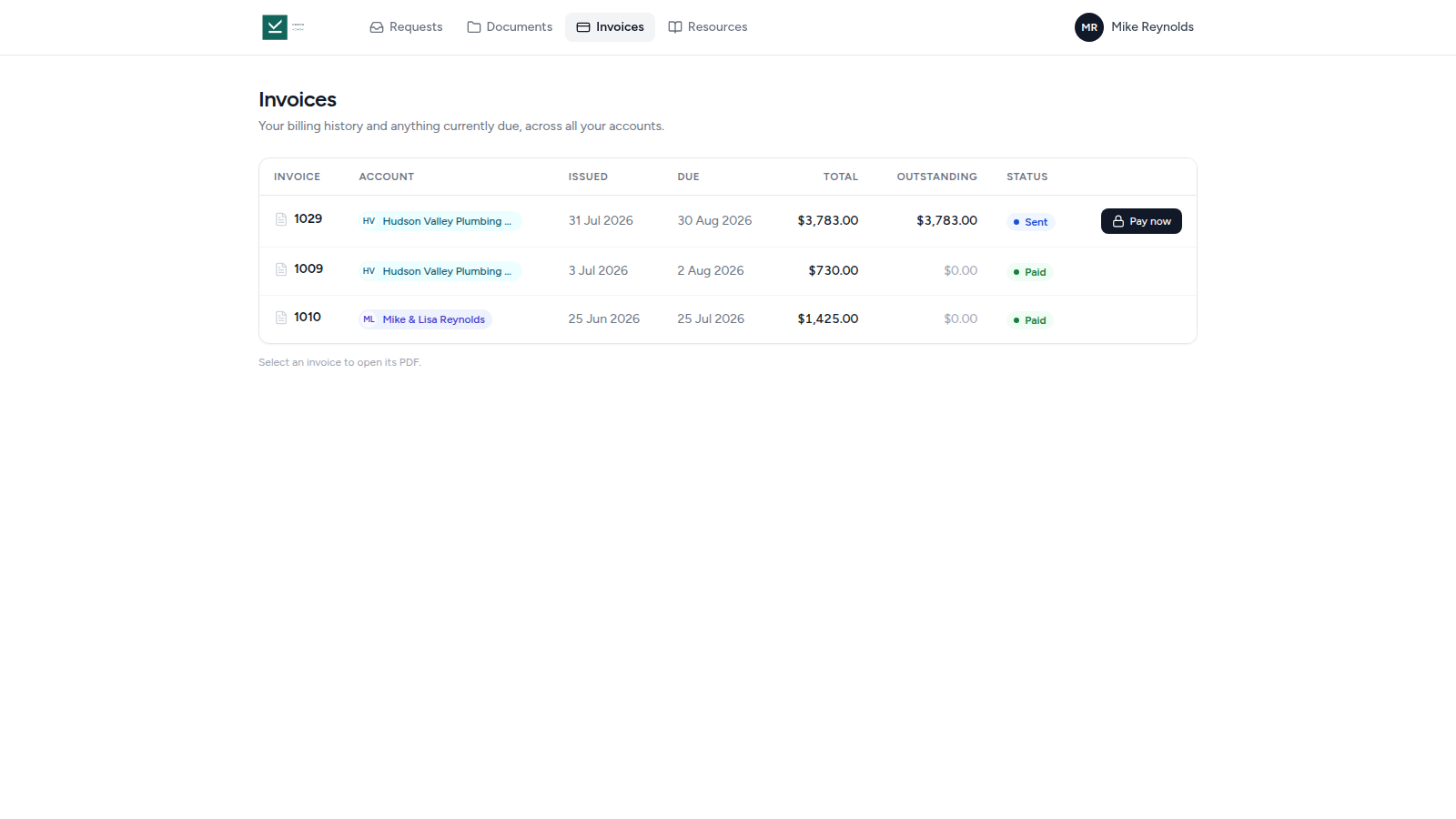
Contacts with billing access can also see outstanding invoices in the client portal and pay them with Pay now.
The portal’s Billing page shows invoice dates, totals, outstanding balances, and payment status. Contacts can select an invoice to open its PDF.
Online payments are recorded in Tidyflow automatically, and the invoice status updates to Partially Paid or Paid. Payments made outside Tidyflow can still be recorded manually; see Create and send an invoice.
Saved payment methods and auto-charge
When a client pays an invoice online or accepts a proposal, their card or bank account is saved for future use. New proposals require payment details before signing by default, so most clients have a method on file before any work starts; see How proposal invoicing works. The saved payment method appears on the client’s Billing tab, including expiry warnings for cards. Clients with cards saved in another Stripe account can be imported from Stripe.
A client who saves a payment method through a proposal also has auto-charge turned on, which pre-selects charging their saved method whenever you send them an invoice. To switch it for a client, open the client’s Billing tab and click Auto-charge on or Auto-charge off beside the saved payment method.
You can charge a saved payment method without waiting for the client:
- When emailing an invoice, turn on Charge saved card to charge the client’s payment method on file immediately.
- On a recurring invoice, turn on Charge automatically so each generated invoice charges the saved payment method instead of waiting for payment.
- A proposal line billed On completion follows the proposal’s invoice setting when its Job is completed. With Auto-send and charge, Tidyflow can charge the saved payment method automatically. A When requested balance opens as a draft for you to review and send.
If a client has no saved payment method yet, invoices are sent normally until they pay online for the first time.
Contacts with billing access can add or replace their payment method themselves in the client portal: open Billing, then Payment methods.
Turn off online payments
In Settings under Billing, click the ⋯ menu next to Stripe account in the Online payments section, choose Disconnect, and confirm. Your clients can no longer pay invoices online, auto-charge stops working, and Tidyflow forgets your clients’ saved payment methods.
Disconnecting does not close the Stripe account. It stays in your Stripe Dashboard with its payment history; close it from Stripe if you no longer need it. If you enable online payments again later, Tidyflow sets up a new Stripe account instead of reconnecting the old one, and your clients are asked for their payment details again the next time they pay.
Related articles
Was this page helpful?
What went wrong?
Thanks for your feedback.
- Previous
- Proposals overview
Last updated October 21, 2026