
Client & Contact Management
Clients and contacts
How clients and contacts relate in Tidyflow, and how to add, unlink, or delete a contact.
What clients and contacts are in Tidyflow
A client is the business, individual, or family you do the work for, such as Nova Enterprises. Jobs, files, client requests, and invoices belong to a client.
A contact is a person, such as Jane Bennett, a shareholder of Nova Enterprises. Contacts are the people you email and the people who sign in to the client portal.
One contact can be linked to several clients. For each client, you can set the contact’s role, a different email address for that client, whether they are included on that client’s requests, and whether they are a billing contact. A contact only sees the clients they are linked to in the client portal. For an owner with multiple businesses, see Set up an owner with multiple businesses.
Add a contact
You need permission to edit clients to add a contact. Open the New contact panel in one of these ways:
- Select the arrow next to + at the top of the sidebar, then select Add new contact.
- Select Clients, then Contacts in the sidebar. Select + at the top right of the list, then Contact.
- Open a client and select the Contacts tab, then select + at the top right. The panel opens with that client already selected.
In the New contact panel:
- Choose a Client, or leave it empty to add the contact without a client.
- Leave Attaching existing contact? set to No and enter the first name, last name, and email address. Role and Phone numbers are optional.
- Tick Enable portal access and send access email if the contact should sign in to the client portal now.
- Tick Include on requests and Billing contact as needed for that client.
- Select Create.
Each contact’s email address must be unique in your workspace. If the person already exists, link them to the new client instead of creating a duplicate. See the next section.
To add many contacts at once, select + on the Contacts page, then Import from CSV.
Link an existing contact to another client
- Open the client and select the Contacts tab, then select + at the top right.
- Set Attaching existing contact? to Yes.
- Pick the person from the Contact list and enter their Role for this client.
- Optionally enter a Different email address to use for this client only.
- Tick Include on requests and Billing contact as needed, then select Create.
You can also start from the contact: open the contact from the Contacts page, select the Clients tab, then select + (Add New Client) and choose the client.
Add a contact without a client
Yes, you can add a contact without linking them to a client. Leave Client empty in the New contact panel and select Create. The contact appears on the Contacts page, and you can link them to a client later from the client’s Contacts tab with Attaching existing contact? set to Yes.
Remove a contact from a client
Removing a contact from a client unlinks them from that one client only. The contact stays in your workspace and stays linked to any other clients.
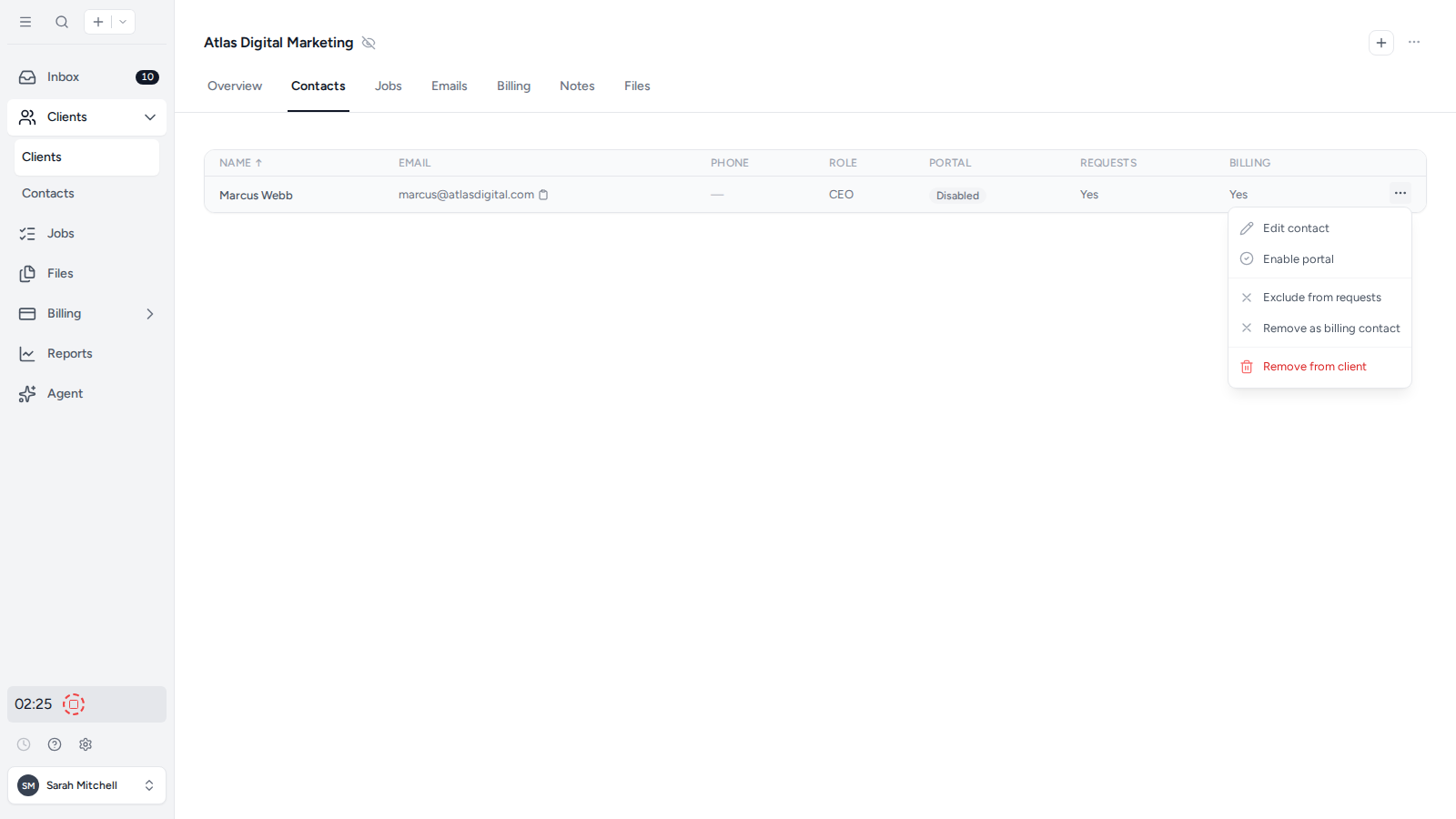
- Open the client and select the Contacts tab.
- Open the three-dot menu next to the contact.
- Select Remove from client and confirm.
After removal, Tidyflow also takes the contact off that client’s client requests that have not been sent yet. Their client portal access for other clients is unchanged.
Delete a contact
Deleting a contact removes the person from your workspace and from every client they are linked to, and ends their client portal access. Only workspace owners and admins can delete a contact, and it cannot be undone.
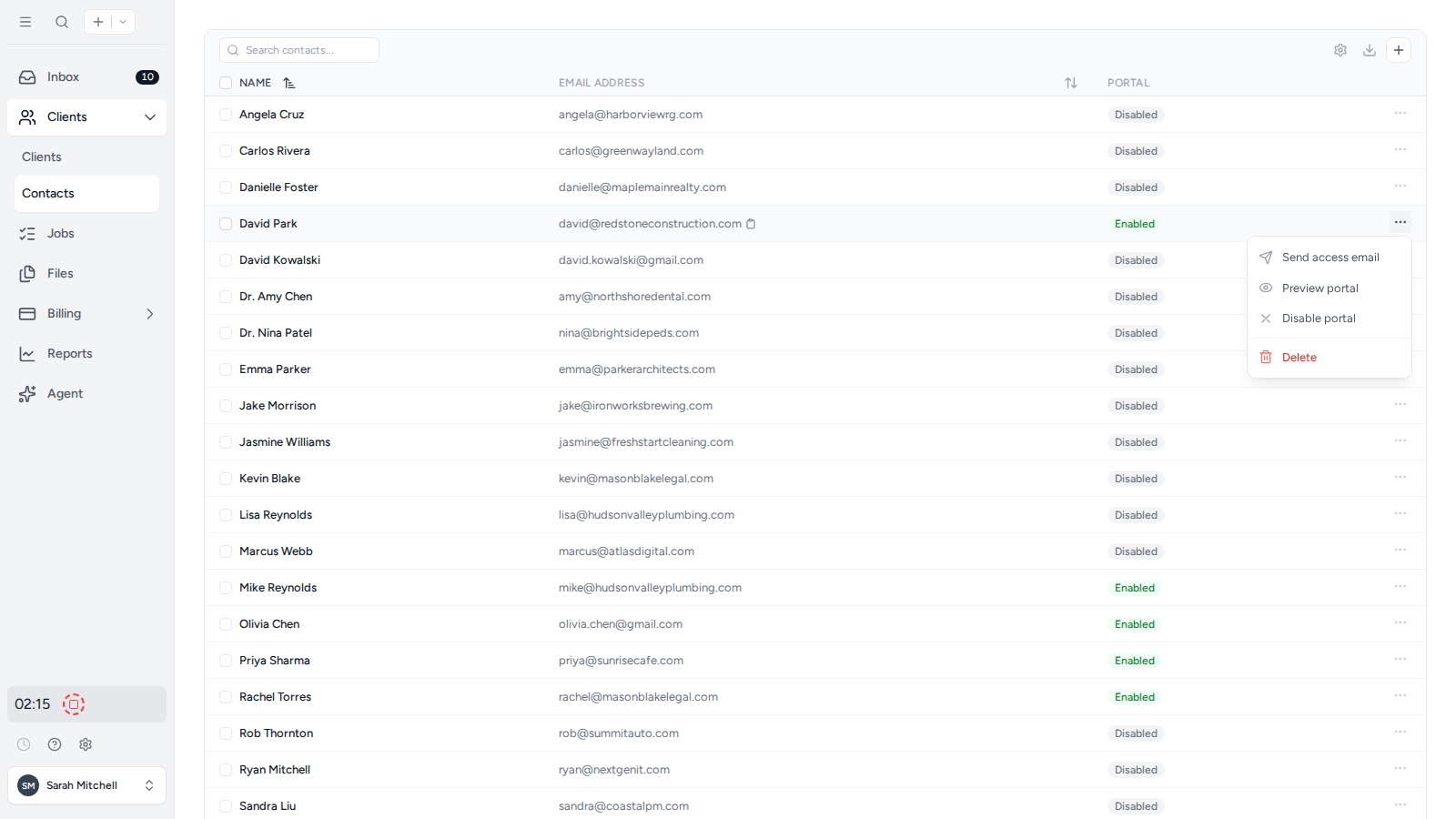
- Select Clients, then Contacts in the sidebar.
- Open the three-dot menu next to the contact.
- Select Delete and confirm.
If you only want to stop someone signing in, select Disable portal in the same menu instead. The contact keeps their client links and you can select Enable portal later. If the person no longer deals with one client, use Remove from client on that client’s Contacts tab instead.
Client portal access for contacts
Adding a contact does not give them client portal access on its own. Turn it on with Enable portal access and send access email when you create the contact, or later with Enable portal in the three-dot menu on the Contacts page or a client’s Contacts tab.
A contact needs portal access before you can set them to Include on requests from the client’s Contacts tab. Selecting Disable portal also takes the contact off client requests that have not been sent yet.
For the full steps, sending another login link, and previewing what a contact sees, see Enable client portal access for a contact.
Related articles
Was this page helpful?
What went wrong?
Thanks for your feedback.
Last updated October 12, 2026