
Client Portal & Requests
Add links to the client portal Resources page
Add useful links to the Resources page in your client portal, then reorder, edit, or remove them.
Portal resources are links that your firm shares with every contact who can sign in to your client portal. Use them for tax calendars, government forms, payment sites, bookkeeping software, or any other page your clients may need regularly.
Only firm Owners and Admins can manage client portal resources.
Add a link to the client portal Resources page
- In the firm app, open Settings.
- Select Client portal under Customize.
- In Resources, click the + button.
- Enter the Name your clients should see.
- Enter the full Link, including
https://. - Click Add resource.
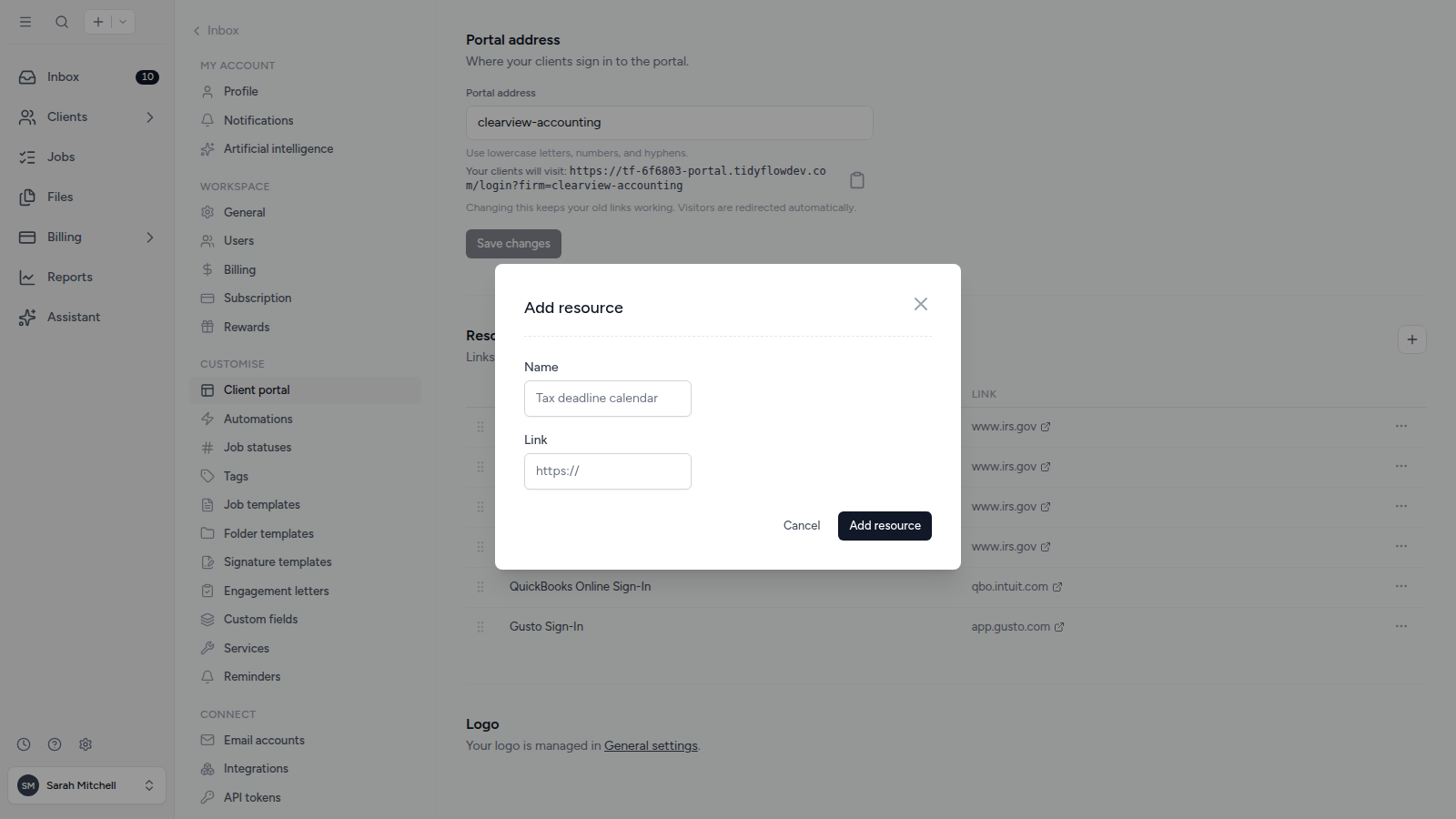
The Resources tab appears in the client portal as soon as you add the first link. Resources apply across your client portal, so every portal contact sees the same list rather than a list for one client or Job.
What clients see on the Resources page
Contacts open Resources in the client portal and select a resource to open the link in a new browser tab. The page shows the name you entered and the website address.
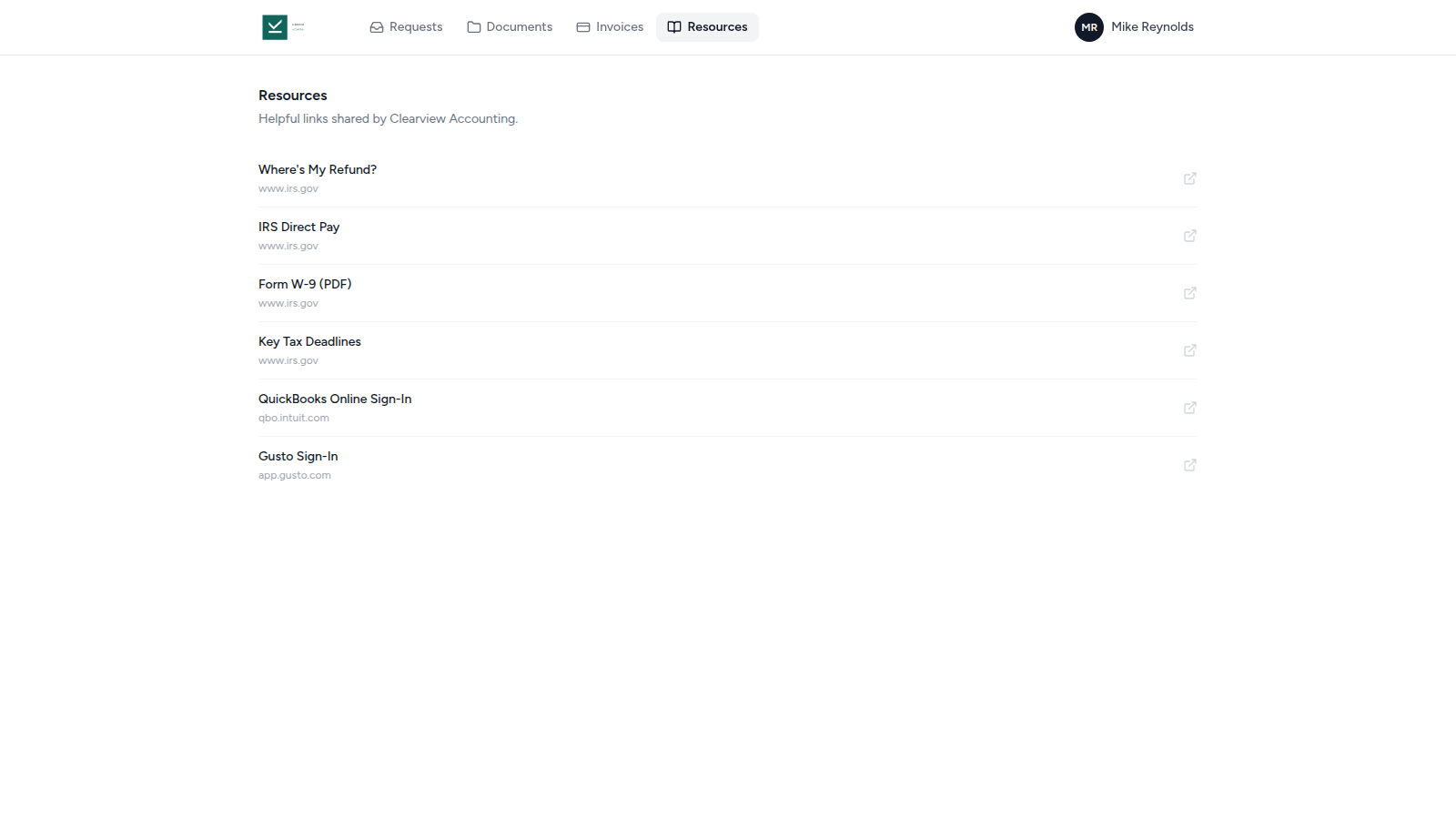
Reorder, edit, or remove client portal resources
Open Settings, select Client portal, and find Resources. Drag a resource by its handle to change the order. You can also open the resource’s action menu to choose Move up, Move down, Edit, or Remove.
Removing the final resource also removes the Resources tab from the client portal.
Related articles
Was this page helpful?
What went wrong?
Thanks for your feedback.
- Next
- Client upload links
Last updated August 2, 2026