
Client Portal & Requests
Uploading and downloading files
Learn how to upload, download, and organize client files in Tidyflow, including bulk downloads and full-workspace backups.
Tidyflow keeps client files in two places: the Files page in the sidebar lists files across all your clients, and the Files tab on each client holds that client’s folders.
How the Files page works
The Files page in the sidebar lists the files of every client you have access to in one list. Search by file name, or click a client’s name to open their Files tab.
Tabs along the top narrow the list. On a phone, choose the view from the filter button instead.
- All: every file
- Unassigned: files not linked to a client or Job yet, such as files sent through the firm upload link. Click the file’s ⋯ menu and choose Assign to client to move it into that client’s Client Uploads folder.
- Signature Requests: files sent for e-signature, with their status (Draft, Awaiting, or Signed)
- Client Uploads: files clients sent you through an upload link, a client request, or the client portal
- Smart Classifications: suggested file names and folders waiting for your review. Smart classify needs AI turned on for your workspace. See Smart Classification for client uploads.
The buttons at the top right are hidden on phone-width screens:
- The link icon (Copy upload link) copies your firm upload link. Files sent through it need no login and arrive on the Unassigned tab.
- The plus icon (Upload file) uploads files for a client. Choose the client and the folder, then add the files.
Each client also has their own upload link, and files sent through it go straight into that client’s Client Uploads folder. To copy it, open the client’s Files tab, click the ⋯ menu at the top right, and choose Copy Upload Link. Client upload links covers both links in detail.
Open a client’s Files tab
- Select Clients in the sidebar and open the client.
- Select the Files tab.
The client’s Files tab shows that client’s folders and files, with the upload and folder controls.
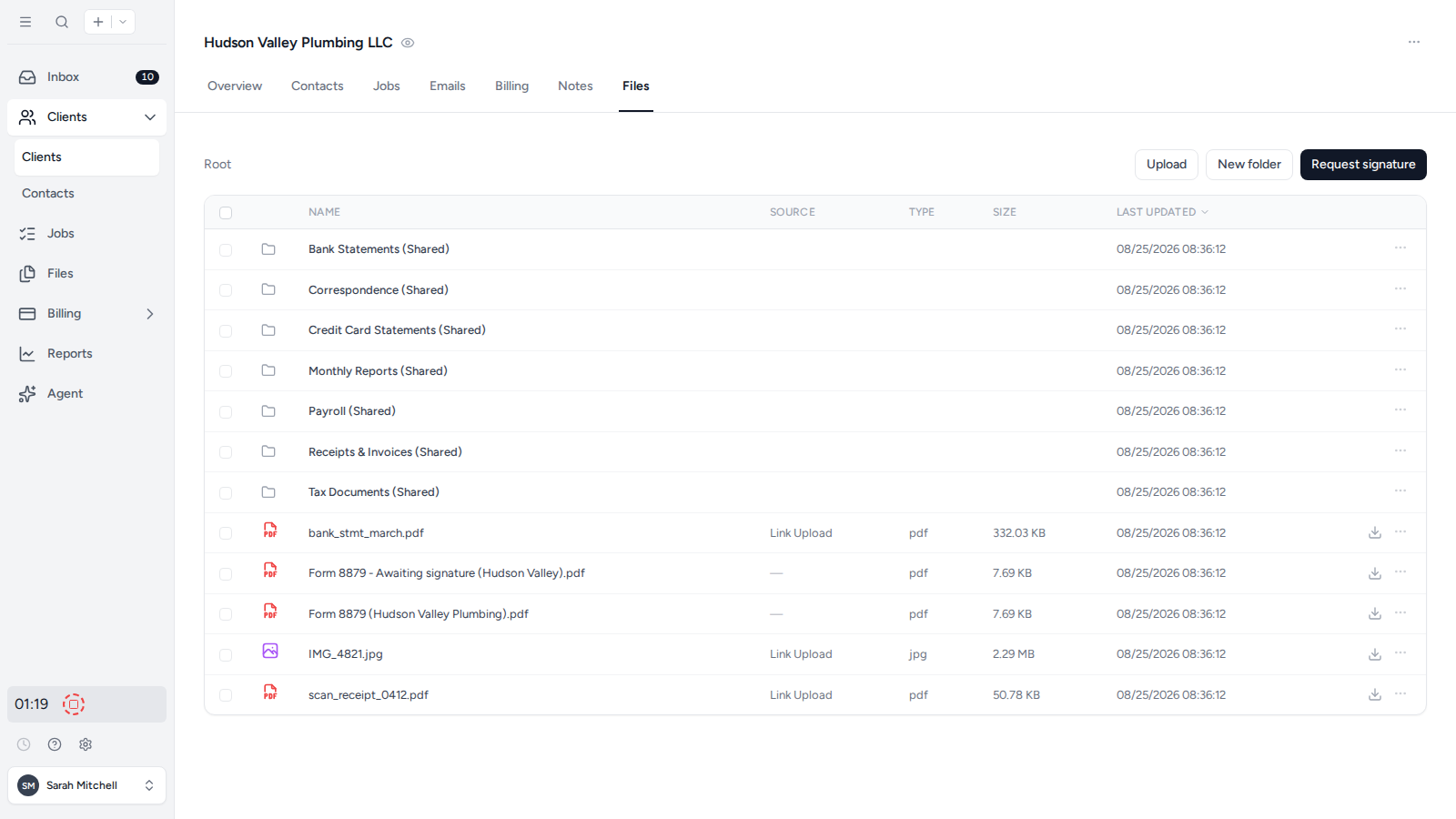
Download files and folders from a client’s Files tab
On a client’s Files tab, use the download action on a file’s row to download one file. To download several files or folders, select their checkboxes and choose the download action in the bulk-action bar. Tidyflow prepares the archive and emails you a secure download link.
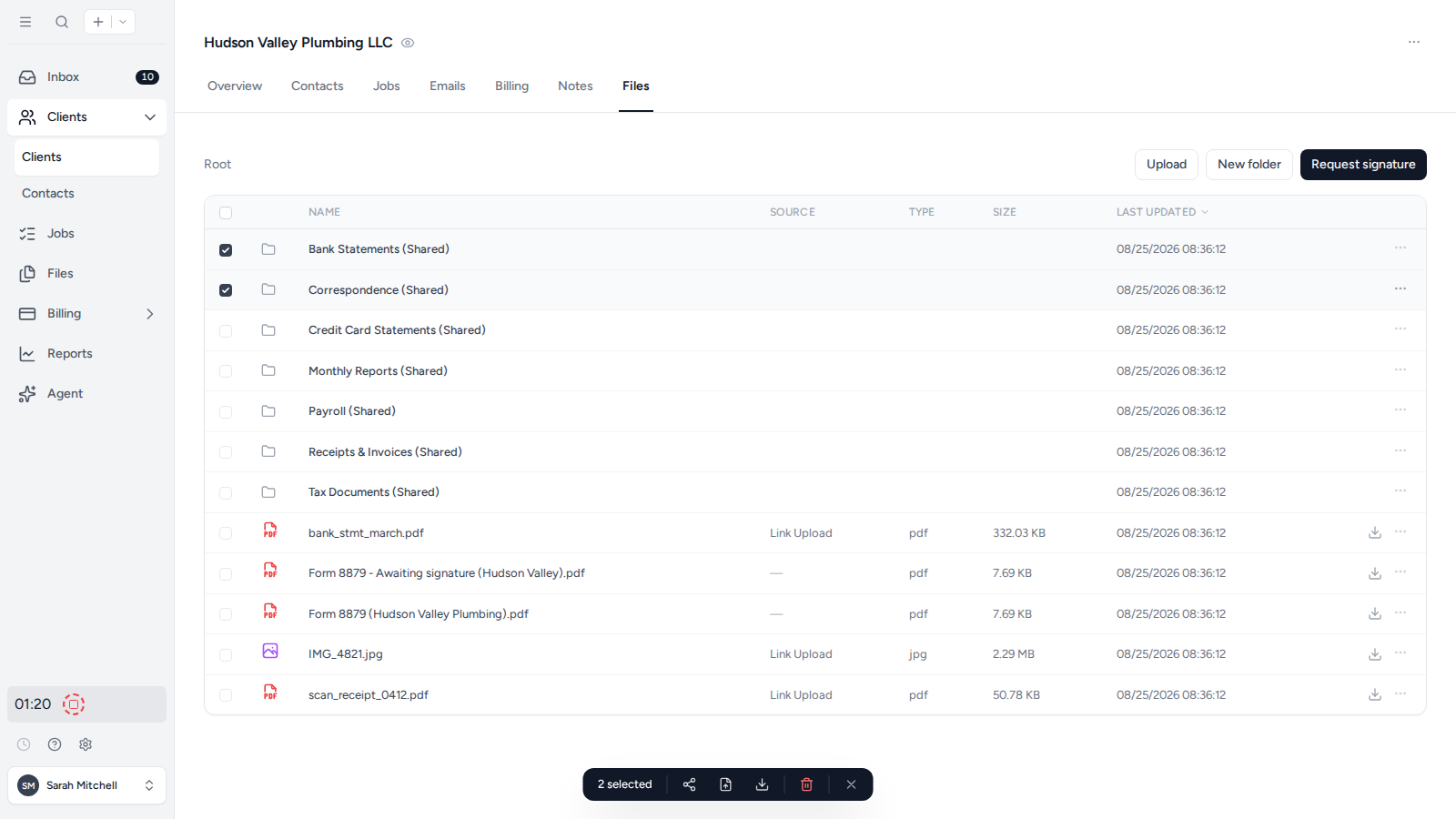
Preview and edit files on a client’s Files tab
Click a file’s name on a client’s Files tab to preview it without downloading. For PDFs, the preview also lets your team add text, highlights, drawings and images, fill in form fields, and save the result as a new version. See Edit a PDF and keep earlier versions.
Upload files to a client’s Files tab
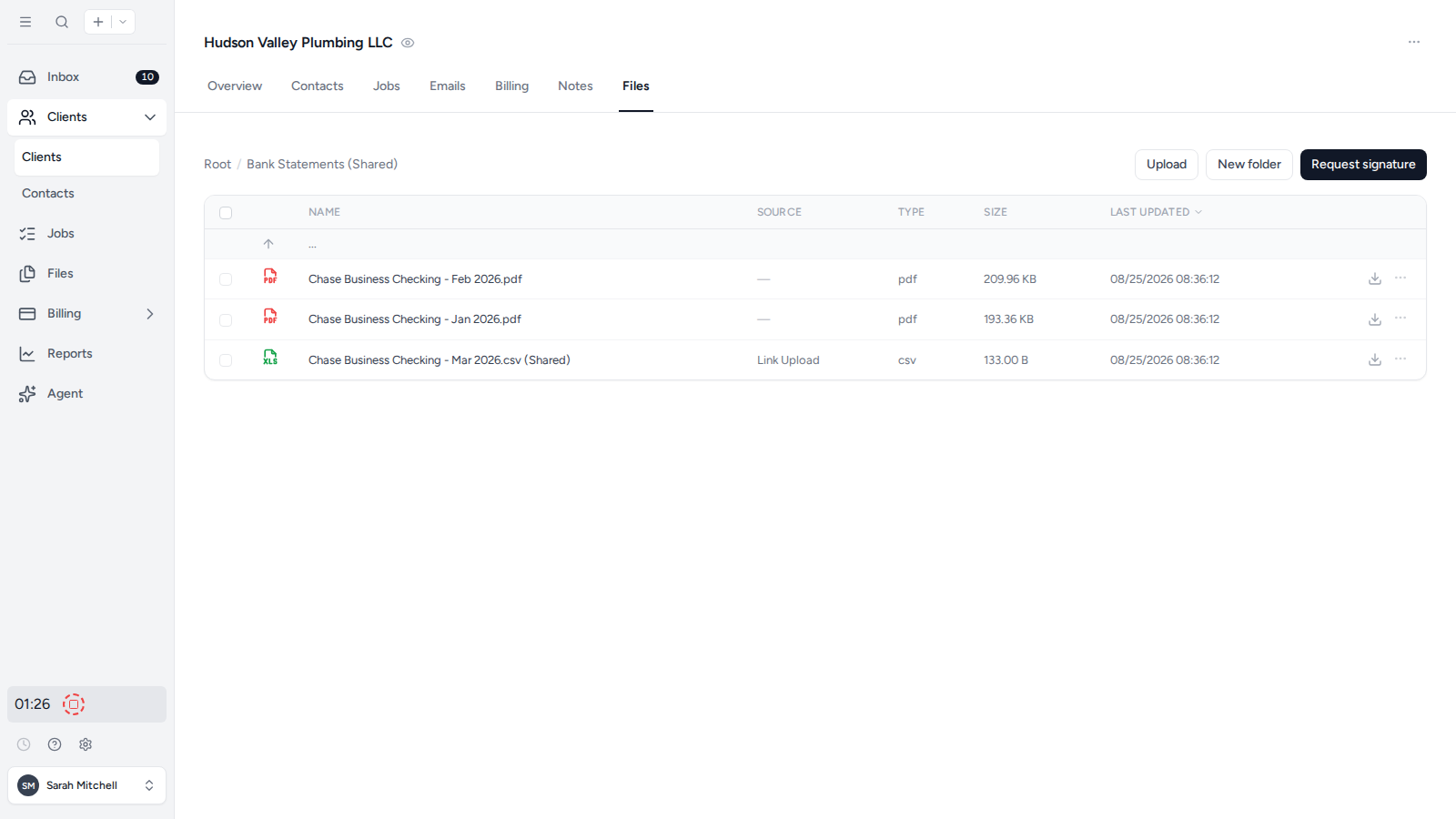
On a client’s Files tab, open the folder where the files belong, then select Upload or drag files into the folder. Uploading from inside the folder keeps the client’s file structure organized.
Back up all client files and folders
Workspace owners and admins can request a ZIP archive of the workspace’s client files and folders.
- Open Settings, then General.
- Find Data export.
- Select Export beside Files and folders.
Tidyflow emails you a secure download link when the backup is ready. The link expires after 72 hours.
To export Job records, descriptions and comments, use the separate Jobs row in Data export. See Export Jobs.
Was this page helpful?
What went wrong?
Thanks for your feedback.
Last updated October 13, 2026