
Client Portal & Requests
How to share files with contacts
Make sure you have added the relevant Contacts to the client, then open the client’s Files tab.
You can share a top-level folder by opening the three-dot menu next to it and selecting Share. Choose which Contacts should have access. For example, you may want every Contact on a client to see management reports, but only one Contact to see payroll information.
Contacts can access every file and subfolder inside a folder shared with them. You do not need to share the folder again when you upload more files to it.
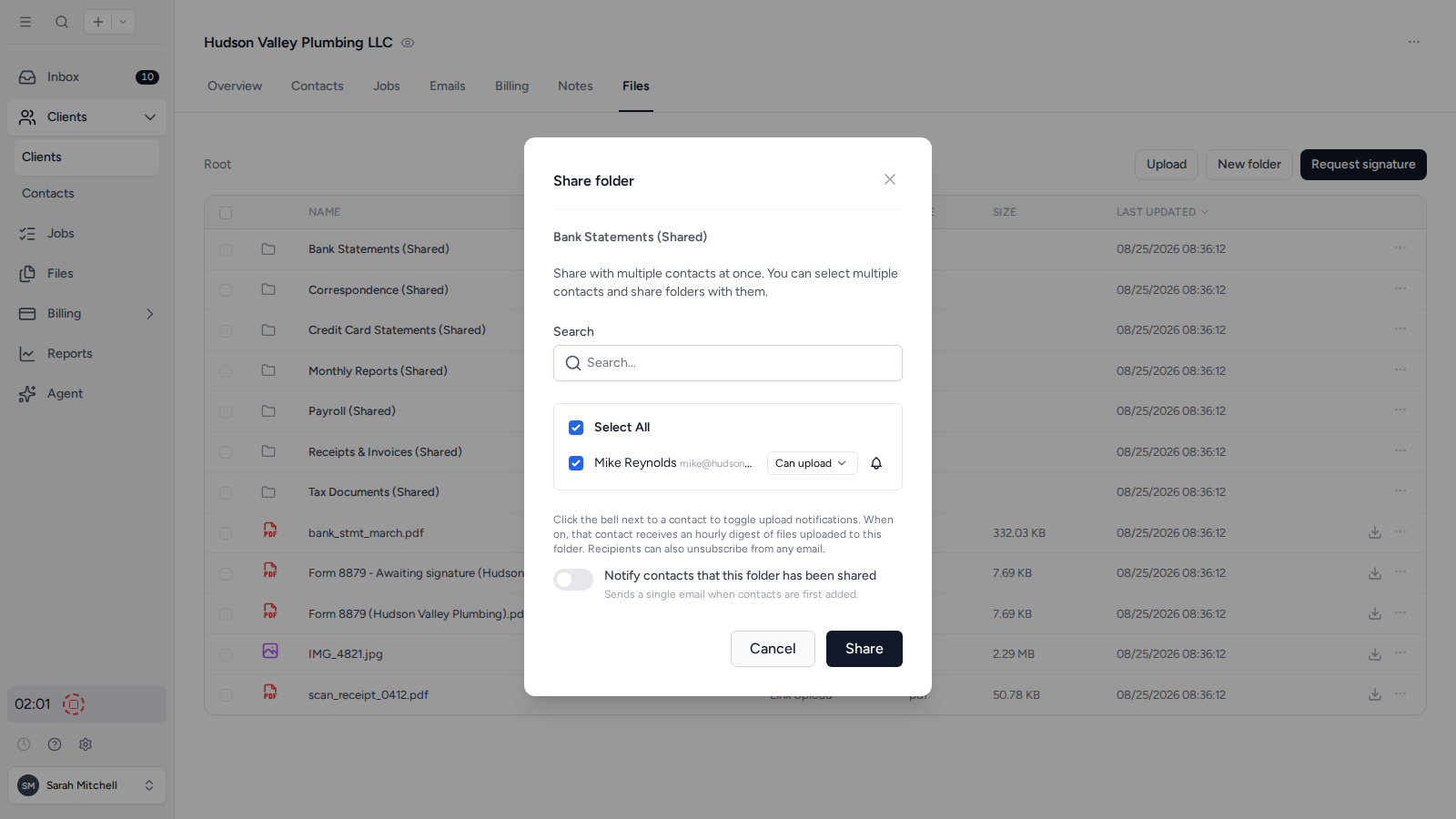
Choose whether a Contact can upload or only view
Each Contact you share a folder with gets their own access level, set with the View and Upload buttons next to their name in the share dialog:
- View: the Contact can open and download everything in the folder but cannot add anything to it. Use this for finished work you are delivering, such as signed accounts or filed returns.
- Upload: the Contact can also upload files into the folder. Use this for folders where you expect documents back, such as a bookkeeping records folder.
New shares default to View. You can mix levels on the same folder, so one Contact can upload records while another only reads the reports. Change a Contact’s level any time by reopening the share dialog.
To share several files and folders at once, select them and use the bulk share option, which sets one Folder access level for every folder in the selection.
Notify a Contact when files are added to a shared folder
Click the bell icon next to a Contact in the share dialog to turn on upload notifications for that Contact. When it is on, that Contact receives an hourly digest of files added to the folder, so they know when new work has landed without you emailing them. Recipients can unsubscribe from those emails themselves.
The bell controls ongoing notifications. The separate Notify contacts that this folder has been shared switch sends a single email when Contacts are first added to the folder.
To be notified yourself when a Contact uploads something, follow the client instead. See Follow a Client and Get Notifications.
To check whether a Contact has actually opened something you shared, see Check who has viewed a document.
Where files a Contact sends you outside a shared folder end up
A Contact does not have to wait for a request or a shared folder to send you something. They can sign in to the client portal and upload a document straight away, which is what usually happens when a notice arrives in the post that neither of you was expecting.
Anything uploaded that way lands in a Client Uploads folder on that client, created automatically the first time it is needed. Keeping it separate means client submissions never land in the middle of your own working papers, and you can move a file into your folder structure once you have looked at it.
Files sent through the client’s upload link go to the same place. See Client upload links.
Was this page helpful?
What went wrong?
Thanks for your feedback.
- Previous
- How to collect files from clients
Last updated October 26, 2026