Try Tidyflow
Get your firm organized.
Watch a 5-minute demo, or start a free trial. No credit card required.
Use these templates when a client has not answered a document request, question, or invoice reminder. Replace the bracketed text, confirm the facts and deadline, and send the message through your firm’s approved channel.
Follow-up email templates
Adapt each template to your firm’s voice. Keep the subject line clear and ask for one specific next step. That step can still include a short list of documents.
1. First follow-up: document request
Subject: Quick reminder: documents for your [tax year return]
Hi [Name], just following up on the documents we need to get started on your [return]. Here’s what’s still outstanding:
- [Item 1]
- [Item 2]
You can upload them here: [link]. Receiving them by [date] will help us keep the work on track for [deadline]. Thanks!
2. Second follow-up: firmer, with a deadline
Subject: Action needed by [date]: [return/job]
Hi [Name], we still need the items below to move forward on your [job]. To hit [filing deadline], we’ll need them by [date]:
- [Item 1]
- [Item 2]
Upload here: [link]. If anything’s holding you up, just reply and we’ll help. Thanks!
3. Missing information follow-up
Subject: One quick question to finish your [job]
Hi [Name], we’re almost done, but we need one detail to wrap up: [specific question]. A one-line reply is all it takes and we’ll take it from there. Thanks!
4. Payment / invoice reminder
Subject: Invoice [#]: a friendly reminder
Hi [Name], a gentle nudge that invoice [#] for [amount] is now [due/overdue]. You can pay online here: [link]. If there’s any issue with the invoice, just reply and we’ll sort it. Thanks!
5. Final notice before pausing work
Subject: We may need to pause work on [job]
Hi [Name], we’ve reached out a few times about [outstanding items], and we don’t want [deadline/outcome] to be at risk. If we don’t receive them by [date], we’ll need to pause work until we do. Everything you need is here: [link], and we’re happy to jump on a quick call if that’s easier.
Set the escalation to match the work
A routine bookkeeping request may allow a few business days between messages. A payroll, filing, or lender deadline may require a shorter cadence. Set the timing from the actual deadline and the time your team still needs to complete the work.
Start with a neutral reminder. Add a specific requested-by date when timing matters. Use the final notice only when pausing work or putting an outcome at risk is accurate under your engagement terms and firm policy.
If email is not working, use another channel only when your firm and the client have agreed to it. Record the contact in the same place your team tracks the job so the next person can see what was requested and when.
Use AI to draft follow-ups from a missing-document list
ChatGPT or Claude can turn a spreadsheet of outstanding documents into separate draft emails. Redact client identifiers first, tell the assistant to use only the facts in each row, then review every message before restoring names or sending anything.
This can help with a one-off backlog where the same template needs small but important changes across clients. One row may list a bank statement, while another lists several payroll reports or includes a context note that changes the tone.
1. Reduce the spreadsheet to the fields the prompt needs
Copy only the columns that affect the email:
- a row ID
- client name or a stable client label
- missing items
- requested-by date
- upload link
- last contact date
- a short tone or context note
Leave out tax IDs, account numbers, balances, phone numbers, and any other fields that do not change the draft.
2. Replace client identifiers before opening the assistant
Use Tidyflow’s free Client Data Redactor to replace identifiers in the reduced table before it leaves the page. The placeholders can be restored later in the same browser session.
Check every replacement before copying the table. An unusual value or a name without enough context can be missed, and the remaining business facts may still point to a particular client.
Keep the redactor tab open. You will need the same browser session if you want to restore names in the approved drafts.
3. Ask for one draft per row
Paste the redacted table below this prompt:
You are drafting document follow-up emails for an accounting firm.

Write one email for each row in the table. Use only the facts in that row.
Do not invent a missing document, date, upload link, prior contact, consequence,
or reason for delay.

For each email, return:
- Row ID
- Subject line
- Email body

Writing rules:
- Keep the email under 120 words.
- Name every missing item exactly as written.
- Include the requested-by date only when the row provides one.
- Include the upload link exactly as written.
- Follow the tone note when one is provided.
- Do not threaten a filing consequence unless the row states it.
- Preserve every placeholder exactly as written.
- If a required field is missing or ambiguous, write "REVIEW NEEDED" instead
  of guessing.

Table:
[PASTE REDACTED TABLE HERE]
The strict rules matter more than the opening sentence. Without them, an assistant may make a reasonable-sounding guess about a deadline, consequence, or missing item that was never in the spreadsheet.
4. Review, restore, and send from the right system
Check each draft against its source row. Confirm the missing items, date, link, tone, and any stated consequence. Remove vague filler and make sure the ask is easy to complete.
Once the wording is approved, paste the drafts back into the redactor to restore the placeholders. Check the restored version again before it goes anywhere near a client.
Move recurring follow-up into the workflow
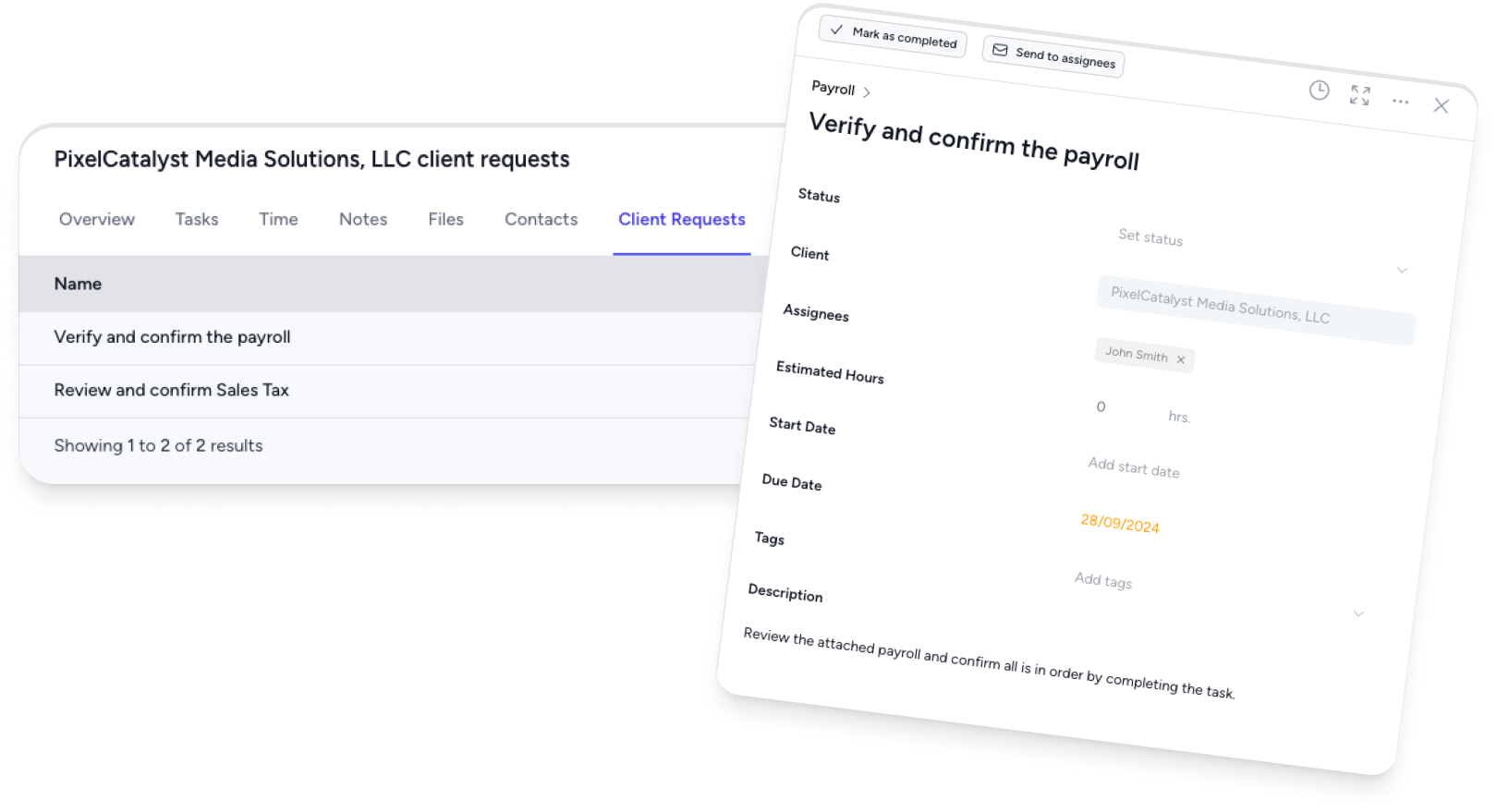
The batch workflow can clear a one-off backlog. If the same document requests recur, create a structured client request instead. In Tidyflow, the request lists what is needed, gives the client a direct place to upload it, tracks what remains outstanding, and sends reminders on a schedule. Your team can then focus on exceptions that need context or judgment.
Set expectations during the client onboarding and communication process, including the usual channel, response window, and effect of a missed deadline. For other safer AI workflows, see how to turn a client email thread into tasks or audit a workflow spreadsheet with ChatGPT or Claude.
Frequently asked questions
How long should you wait before following up with a client?
A first nudge after about 3 business days is a reasonable starting point for routine requests. Adjust the timing for the client, the work, and the deadline. Space later follow-ups a few days apart, and tie the final one to a concrete deadline, such as a filing date or the point when the delay affects the outcome.
How many times should you follow up with an unresponsive client?
Two or three emails spaced a few days apart are often enough, with the last one clearly stating what happens if the client does not respond, such as work pausing or a deadline being at risk. After that, switch channels if your firm and the client have agreed on another way to communicate.
What is the best way to get a client to respond?
Make the request easy to act on. State the specific decision, answer, or set of documents you need, explain the relevant deadline, and provide a direct upload or payment link when appropriate.
How do you follow up without being annoying?
Keep the message short, specific, and useful. Remind the client what is outstanding, why it matters, and what to do next. For routine requests, scheduled reminders can keep the cadence consistent while your team handles exceptions personally.